
Product photos
Separate clothing, accessories and other products from their surroundings. Place the cutout in your shop, catalog or ad, with a background suited to the design.
Give your subject room to stand out.
A product for your shop. A portrait for your team page. A cutout for your next design. Remove the background from an image and download a transparent PNG. Use the result in a listing, presentation or social post, then build a new composition around it.
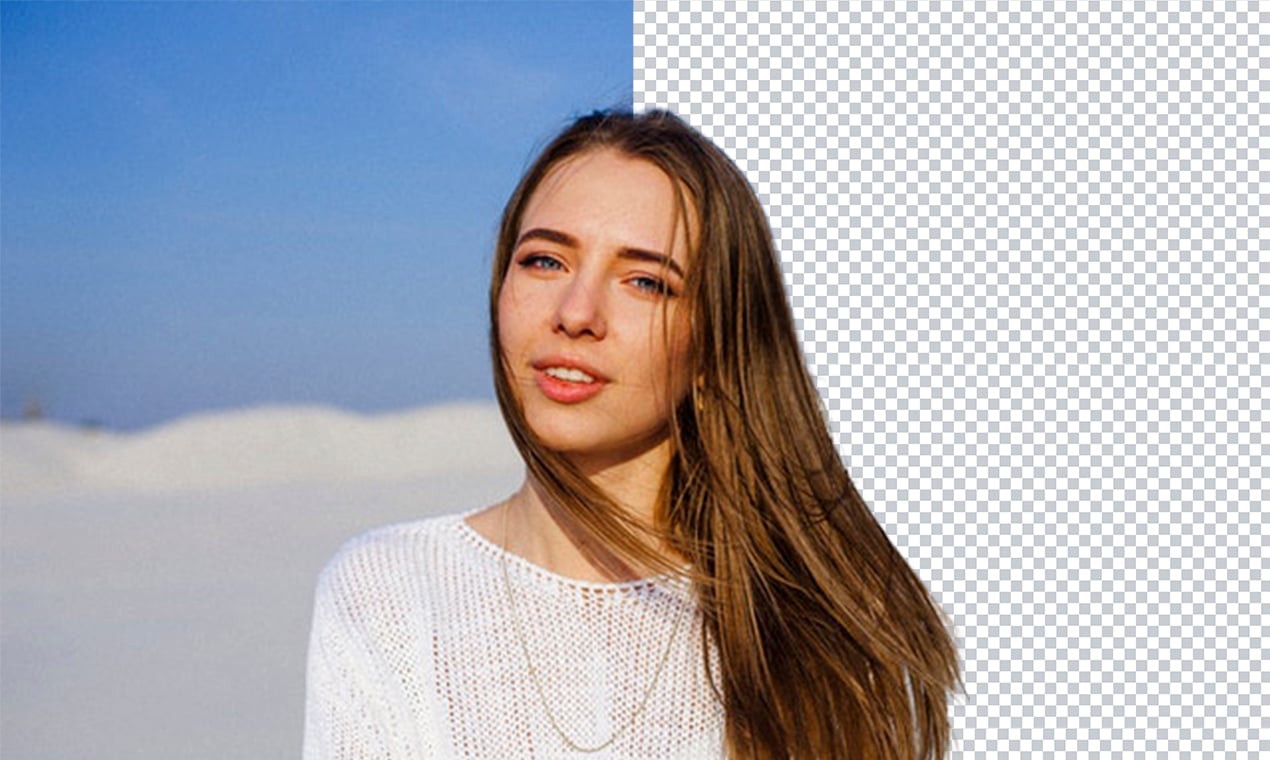
Separate clothing, accessories and other products from their surroundings. Place the cutout in your shop, catalog or ad, with a background suited to the design.
Remove a distracting backdrop from a portrait. Reuse the cutout on a team page, profile design or presentation with a consistent background.
Cut out a person, pet or product to arrange with text and other images. Transparent PNGs are useful starting points for YouTube thumbnails and social graphics.
Remove a plain background from a raster logo or graphic. Inspect lettering, enclosed spaces and fine lines before placing it in a new layout.
Isolate a subject for a digital sticker, collage or slide. Add outlines, text or print preparation in your design editor after downloading the cutout.
Upload a set of images, review each cutout and download the completed results together. Check every image before using it in a product collection or design.
Select Standard for 10 credits per image or Premium for 22 credits before adding your images.
Add one or more JPG, PNG or WebP images. Background removal starts automatically, with images processed in sequence.
Inspect the edges and download your transparent PNGs. Use another editor to add a background, text or other elements to your design.
A transparent PNG lets a new design show through the removed area around your subject. Use the cutout in a product layout, presentation, social post or collage. Simply converting a JPG to PNG does not remove its background.
Start with a clear image where the subject stands apart from its surroundings. Check hair, fur, fine lettering and pale objects against light backgrounds. Keep the original and review every cutout before using it in a final design.
Background removal is available in AI Eraser, with Standard and Premium quality options and downloads for individual images or a batch. To add a different background or make broader changes, try AI Image Editor.
Explore AI EraserChoose Standard or Premium, then upload your photo to start automatic background removal. Review the result and download the transparent PNG cutout.
Remove the background and download the PNG result. PNG supports transparent areas, so another image or design can show through them. JPG does not support transparency, and changing a file extension alone will not remove the background.
Use the same workflow for a white or other backdrop. Pale subjects and small details can blend into a light background, so inspect the edges and any white parts you want to keep.
Upload multiple images and review each finished cutout. Download the results individually or together in a ZIP. Keep the page open while processing; refreshing does not preserve the current queue.
A cutout can be used in product layouts, catalogs and ads. Use an editor to add a suitable backdrop afterward. Check the image requirements of your shop or marketplace before publishing.
Try removing a plain background from a raster logo or graphic, then inspect fine lines and lettering. A PNG remains a raster image; background removal does not convert it into a vector file.
Results vary. Fine hair, fur, glass and subjects close in color to the background can be difficult to separate. Compare the cutout with your original before using it in a final design.
Yes. Both pages open Hotpot AI Eraser for automatic background removal. The current editor creates transparent cutouts; brush selections and instruction-based object removal are not available.